Followers

Showing posts with label How To. Show all posts

How to get your instagram feed back to chronological order


Hey everyone! Today I’m going to show you how you can get your instagram feed back to chronological order. Let’s go!

How to upload multiple gifs on Twitter


You've probably seen by now people on twitter using multiple gifs in one tweet and I'm here to show you how they do it :).

Well, first of all I'm going to say you did NOT miss an update (so don't worry lol). Secondly, the "gifs" you're seeing people use aren't really gifs. They're called "apngs". 


People on twitter are converting their favorite gifs into apngs and here is how they are doing it:


Step One:

pick your favorite gifs... ok have you done that? let us move on to the next step.


Step Two:

Go to this site to convert your gifs into apngs. {click here to go to site}


Step Three:

When you click on the site your screen should look like this...

click on upload image from your computer and select the gifs you selected...


Step Four:

when you've uploaded your gif onto the site it should look like this... (well, with your gif in the center not mine lol)

 anyways you see that drop down bar in the bottom of the gif?? (where it says file size: 1.5MiB Width 498px, height 280px, frames 29, type gif convert) click on the convert part.


your screen should look like this... next click on the words "to APNG" and click "convert to APNG!"


Step Five:

when you've clicked on "Convert to APNG!" your screen should look like this:


next click on the floppy disk that says the words "save"

your apng should now start downloading and being saved to your images...


Step Six:

After you've successfully saved your first apng now is the time to repeat all these steps to convert your other gifs into apngs.


Note: If you notice it doesn't work (I just noticed this right now... it's probably due to the gif being to big. so resize it. (Click on resize) your screen after you clicked resize should look like this...


instead of the width being 498 I changed it to 400 and the height I changed it to 200...   click on the blue box that says "resize image!" 

after you've clicked on resize image your screen should look like this...


next you can either right click if you're on the computer and click save image as or click on save. 

here's the finished (resized) product looks like :)


FAQ ON HOW TO DO THIS:


Is uploading mulitiple "gifs" to twitter only for people with iphone? 
Nope this isn't a iphone or android only thing. Anyone can do it. You just need to use google chrome or safari on your phone. and do the same steps I showed you. But instead of uploading your images to the twitter app you have to log into twitter from web...

here's my tweet using the same steps I just showed you, but instead of using my computer I used my phone  


How do I know what size I need to resize the apng to?

I usually just have the numbers end in 00 for example if the width is 498 I set it to 400. so if after you convert your gif to apng and it's really big just "swap" off the last two numbers into 00 and it should work. 


Hopefully these steps are clear and they can help you out. If they were helpful to you please share this post so more people can know how to do this :)

If you still don't know how to do it, I am delighted to help out. Just tweet me.  


Please don't forget to follow me on all my social medias. Link to those are on the right hand side bar. 

How to get rid of a cold and sore throat


*Disclaimer 
I am NOT a doctor. I am just going to tell you what me and my family does when we have a runny nose and a sore throat. Please contact your doctor before taking any kind of medication to make sure it's suitable for you :)


Hello, today I am going to show you how me and my family deal with colds and sore throats.
Like I said I am NOT a doctor so please contact your doctor before taking any kind of medication so you know it's suitable for you.


What my family does is that we buy Mucinex DM (or XL3... the blue box) and make Cinammon tea. Here's what the Mucinex box and XL3 box look like


These two are life savers! they really help when you're feeling really sick. You know the kind of sick that you can only breathe from in and out your mouth. I know gross lol. but these really do help.


ok, so before you take the medication you're going to need to make Cinnamon tea. To make cinnamon tea you're going to need the following...


  • Pot 
  • Water
  • mug
  • cinnamon sticks
  • Lime (or lemon)
  • Organic raw honey 


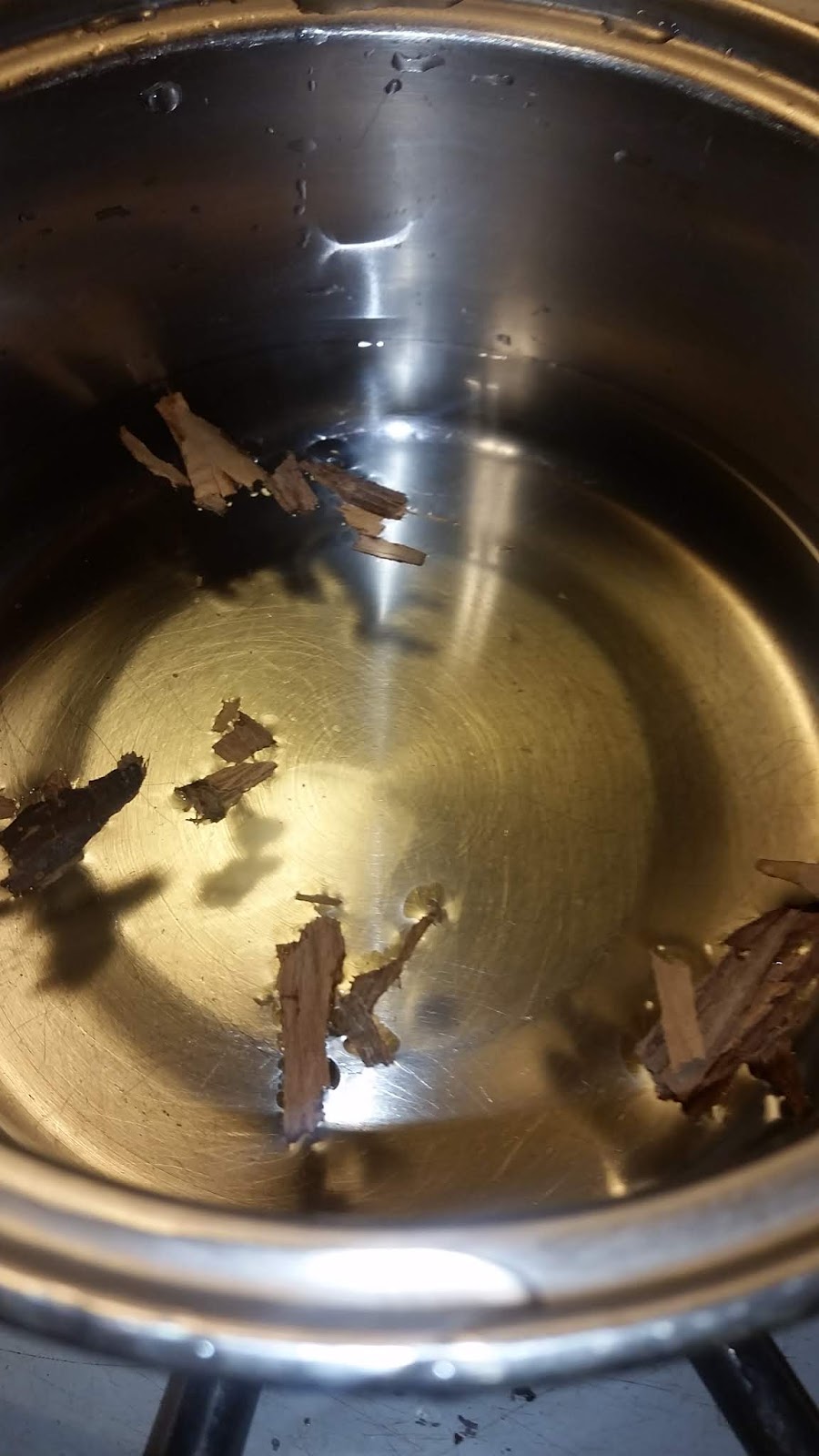
To make the cinnamon tea take the pot and fill it with a little bit of water. Not too much and not to little kind of like this...


Next add a little bit of the cinnamon stick as so and turn on the stove


wait for the water to boil... you will notice how the water is now a reddish color after it's been boiling for a while...


ok, so next what your going to want to do is add cold water to the pot and wait for it to boil more. After a while you should notice that the water is now a deep red color. This is how you know the tea is done so get your mug and pour it in. Be careful because it's hot.


After you've poured your tea into the mug you're going to want to get a spoon and pour some honey on it. When you've done that add it to the tea. Mix it up. 


Lastly, you're going to want to take your lime (or lemon) and cut it in half. When you've done that squeeze a little bit of the lime (or lemon) in the tea and mix. When you've done that now you can drink and enjoy.


This is the part where you take the medicine and drink the tea.
oh and you can even make the tea when your not sick haha it's really delicious... it's also really good without honey and the lime/lemon just add a little bit of sugar and that's it :)


Here's what it looks like without the honey and lime 


Here's another extra tip for when you have a really runny nose and flem. Ok, so I know the following thing I am going to say is probably going to sound gross, but get in the shower and run yourself a nice warm shower. Next, get in it and after a while when you're in there cough as much as you can to get the flem out or if you don't have flem.... blow your nose as hard as you can and continue to do so for a couple minutes.


I hope todays blog post was helpful to you and if it was please share it with friends
and I hope you feel better soon (just in case you're sick).

In the comments below I want to know what you do when you're sick? or you can let me know on my social medias. link to everything is on the right hand side bar. I am on my social medias every day and I would love to be friends with you 

How to transport villagers in Minecraft (survival, creative, cheats)


HELLO GAMERS! ok, so how many of you have a village near your base that is empty because the villagers got killed by pillagers? or zombies? Or they just weren't there to start with?

When I started playing minecraft I was spawned a couple blocks away from a village that was empty. Which sick because I couldn't trade.

So, in todays blog post I'm going to show you how you can transport villagers from village to village using survival, creative or cheats.


Survival:
To transport villagers to your village using survival:


  1. Go to a village that has villagers
  2. Pull a Pewdiepie on them lol. (AKA put a boat in front of a villager and scream "GET IN THE BOAT "
  3. once the villager gets inside the boat, row back to your original village
  4. Put the villager in a house (or else they freak out and try to run away) inside the house add the items the villager needs... you know food, work stuff, bed etc)
Do this at least 2x so the villagers can frick.


I did this survival method once and when I got to my original village I was having problems getting the villager out. So I had the bright idea to run and ring the bell so the villager can get out the boat themselves. So I ran out the boat and when I got back a drowned got inside the boat and killed the villager that was inside :(. 


Creative:
If you don't mind going in creative mode during your survival game... here's how you can take villagers back to your empty village. 
*just a quick disclaimer before we start, if you go on creative when you're in survival you can not... I repeat CAN NOT earn achievements after. 


  1. Go to a village that has villagers 
  2. Grab a boat and put it in front of the villager until they go in
  3. Grab a lead (leash) and use it on the boat
  4. Fly away... but do it carefully and slowly because if you go fast the lead breaks and the villager falls to their death. 
  5. When you get to the village put the villager into a house until like a day passes because they freak out and want to go back 

Trust me, if you do this method please go slow because one of my villagers fell to their death due to the fact that I was going really fast.


Also, side note.... the version of minecraft I'm using is bedrock I believe... so I don't know if it also works with Java. 


Cheats:
If you don't mind using cheats in your games then here's an even quicker way to fill your empty village...


  1. Go to the chat box and type  /summon villager after you've done that press enter.
  2. If you did this correctly you will see the message "object successfully summoned" or "villager successfully summoned"on the screen. 

You also can't earn achievements if you enable cheats


hope you guys enjoyed this blog post and found it helpful. If you need help I'm more then happy to help or if you just wanna chat minecraft follow me and message me on my social medias. Link to everything is on the right hand sidebar.

Or we can chat in the comments below. Do you play minecraft? Let me know

How to get denser & thicker lashes


Remember that one post where I talked about my almost non existing lashes. *cries*

Well, thanks to influenster I was able to bring my lashes back from the dead.

What is influenster you might ask??? Influenster is a community of over two million social savvy shoppers that stay on top of the latest product news and expert tips. Also, they review products, share honest opinion with brands and the community. Lastly, influenster members can test products for FREE based on social media influence. You can also be a part of the Influenster community! Just click on my referral link to get started (click here).

Ok, so let me talk to you guys about this awesome product that influenster and L’Oréal sent me.


They were gracious enough to send me L'Oreal Paris' New Lash Serum Solution. 


As you can see the packaging the product comes in is filled with a ton of information about this product. Including a picture tutorial on how to apply. According to the box


which is good because you know exactly that what is going near your eyes. Especially since sight is such a delicate thing it's always nice to know this kind of information.


Here's what it looks like out of the package


This is a little tube is one month worth of lash serum solution (if you apply 2x a day) the top is a little white brush and the bottom part you twist and the solution comes out the brush.


Here's what the brush from this product looks like.


The brush is really soft and when you twist the bottom of the tube the product comes like from the middle of the brush.


Review:
Ok, so here's the part you all came to see :). The actual review. This product arrived at my house on March 8 and I used it the following day (March 9, 2019). I used this for the instructed 2x a day (I used it morning and night) for a whole month. Here's what my eyelashes looked like before...


Here's what they look like after a month of using this lash serum solution.


As you can see my eyelashes definitely look a little longer.


Things I noticed when using this:
I noticed that my lashes didn't fall out as much as they did before. Before my lashes would itch so I then would go and rub my eyeball or scratch my lash and a bunch would fall off.


Things I didn't like about this product are the following:
I didn't like was that we had to twist to get the solution out. I felt like it kinda wasted it. I suggest maybe have the solution be packaged like a mascara. You know have it be like a tube with a wand where you can control the exact amount you can dispense.

Another thing I didn't like about this product is that when the lash solution would dry up you were left with like.... Humm the best way I could describe it is.... you know when you were a kid and you put some glue on your hands let it dry for a bit. You remember how it looked. That's kinda what it looked like on your eyes (well only if you peeled off the dry lash solution). If you didn't then it looked invisible to the naked eye. You just really had to be looking to actually see it.


Would You Buy again?
Of course I would! Wouldn't even think twice.


Ok, so that's it for today's blog post. I hope you guys enjoyed it. If you did don't forget to share it with your friends. Also, don't forget to follow me on all my social medias. Link to those are located somewhere in this blog. (if you're on desktop I think my social media links are over there --> ) Follow me! Let's be friends ♡


Once again I want to give a big shout out to influenster for sending me this product to try for free in exchange for my honest review. If you guys want to try influenster, you guys can use my link to sign up (click here).    :)


*disclaimer: even though I got these products for free all my opinion are my own*

How to create blog banner (Easy)


For this tutorial you will need two apps.
- Canva
- Background Eraser (optional)


First App:
Open up Canva.
Scroll down until you see "Blog Banner"


Click on "see all"


After that select the "blank" option


After that your screen should look like this. Next click on the + sign


After that's done click on graphic

Search what you want. In this case I want a ribbon banner so I typed banner and clicked on the one I liked.
*tip: you see the ones that have a 1 and like 2 coins next to it on the bottom? Avoid using those because they're not free.

After you selected the graphic you want you can change color or adjust size and place it where you want. I went with a pink ribbon :)


 After you choose the color and place your graphic where you want now it's time to add text. So click on "text"


Once you do that it should bring up a screen that looks like this

 Click on "add some text of your own"

Your screen should now look like this
Click on the words "enter your text" to type what you want to say.


To change the font click on "open sans" and choose what font you want. After that you can select size.

I went for the font "bryndan write" in size 21 color white. After that I placed it on top of my ribbon banner.

After you add your text repeat the step you used to find the ribbon banner. And if you want also the steps you use to change the color

I picked a cute tea cup. lol and that's the tea sis.
I also changed the color to a pink cup and plate.


After that saving is going to be the last thing so to save click on that blusish green arrow on the top right corner and save.


Second App:
This step is completely optional but if you want your background of the image you saved to be trasparent upload your image to your background eraser app and erase the white. After that's done then just save and you're done :)


I really hope this tutorial was helpful. If not and you still need help I'll be more then happy to help you out. You can tweet me or use the comments below.